Thursday, April 22, 2021

3 Ways to Fix iPhone Stuck on Black Screen with Spinning Wheel

Is your iPhone stuck on black screen with spinning wheel? Or stuck on the black screen with Apple logo? First, you can try to force restart your iPhone, or fix it with iTunes. If you restore with iTunes but don’t have a backup with iTunes, the data on your iPhone will be lost. If the data on your iPhone is very important and you don’t want to lose them, you can try to restore your iPhone with Cocosenor iOS Repair Tuner.

You may get more details from this article: https://www.cocosenor.com/articles/iphone-ipad/fixed-iphone-stuck-on-black-screen-with-spinning-wheel.html


Friday, April 2, 2021

Solved Microsoft Word The File Is Corrupted and Cannot Be Opened

Microsoft Office Word is the software that is often used for work or study. It is very frustrated when we are wanting to open a Word document but prompted with this message: "The file is corrupted and cannot be opened". Is there any way to solve this problem? Yes, try with these three ways: Way 1: Force Word to repair the corrupted and unreadable file. Way 2: Start the corrupted Word document in safe mode. Way 3: Recover the corrupted Word document by repair software.


Wednesday, December 30, 2020

Disable Safe Mode in Windows 10 from Command Prompt

If you are stuck in Windows 10 safe mode, you can try to disable safe mode from Command Prompt in Windows 10.
If you have been gotten into Windows 10 safe mode, you can open Command Prompt easily. Press "Windows + R" key to open Run box, type in "cmd" press Enter or click on OK to open Command Prompt. And then type in command line to disable safe mode: bcdedit /deletevalue {default} safeboot.
If you are stuck out of safe logon screen, you may need to open Command Prompt from Advanced options, or open Command Prompt with a Windows 10 installation disk. If want to get more details, please refer to this article: https://www.cocosenor.com/articles/windows-10/5-ways-to-get-out-of-safe-mode-windows-10.html

Wednesday, December 16, 2020

Reset Windows 10 Password from Safe Mode

Here are three ways to reset Windows 10 password from Safe Mode. Way 1: Reset password with Command Prompt in Safe Mode. Way 2: Reset forgotten password with password reset disk. Way 3: Reset password from Windows Settings in Safe Mode.

Tuesday, December 8, 2020

Password is Incorrect in Windows 10 Safe Mode and Stuck in Logon Screen

Password is Incorrect in Windows 10 Safe Mode and Stuck in Logon Screen

"I use a PIN to log onto my Windows 10 PC and enable safe mode from System Configuration. And then I restart my PC to the safe mode logon screen where the password is required. There is no PIN option in safe mode logon screen, what is worse I forgot my password as I have a long time do not use it. I try to reset my Microsoft account password using the browser on my mobile. But when I enter the new password to get into safe mode, it still prompts me 'the password is incorrect'. I am stuck in Windows 10 safe mode, how can I get out of safe mode or reset the forgotten password?" – question from answers.microsoft.com

You may be very frustrated when you are stuck in Windows 10 safe mode and forgot password. But don't worry, where there is a will, there is a way. This document will show you several ways to unlock your Windows 10 computer, just have a try.

Option 1: Reset password and then get into safe mode

Step 1: Get and install a Windows password recovery tool.

Go to an accessible PC, download Windows Password Tuner.

Click on the .exe file, click on Next, and follow the installation instructions to install Windows Password Tuner on the PC.
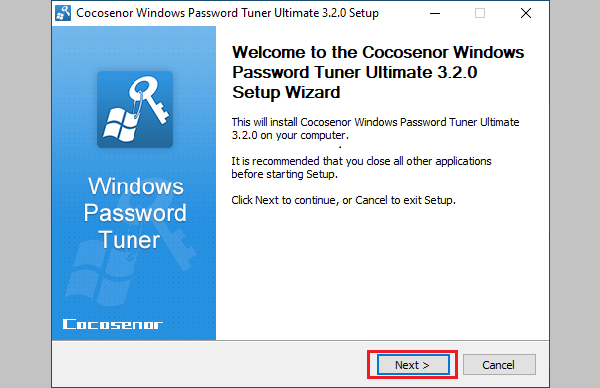
install windows password tuner

Step 2: Create a password reset disk.

Launch Windows Password Tuner program and insert a USB disk into this PC. (Tip: The USB drive will be formatted to create a password reset disk. If there is any important data on it, please remember to remove the data to a safe place before the USB drive is formatted.)

Click on "USB device". If you use a CD/DVD to create a password reset disk, click on CD/DVD.
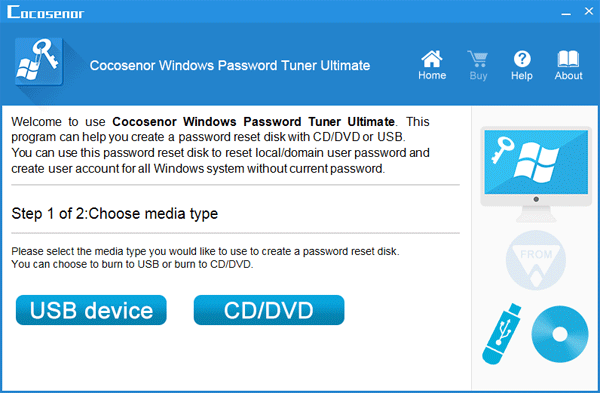
select media type

Click on the drop-down list to select your USB drive, and then click on "Begin burning".
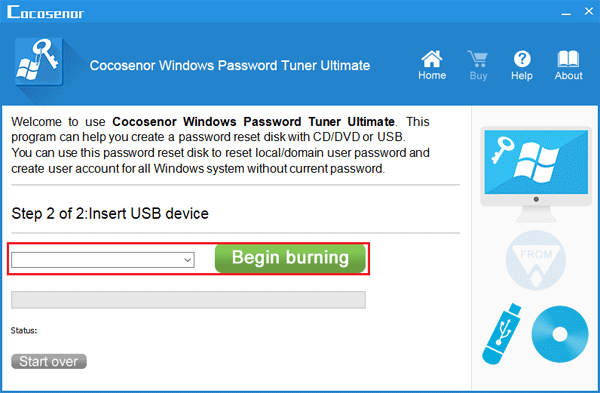
create windows password reset disk

Step 3: Set your locked computer to boot from USB drive.

When the USB password reset disk is burnt successfully, take it connect to your locked computer which is stuck in safe mode.

Restart/Start the computer, and then press boot menu key (F8, F12, ESC) when the manufacture's logo appears.

When the Boot menu pops up, select your USB drive to boot from.
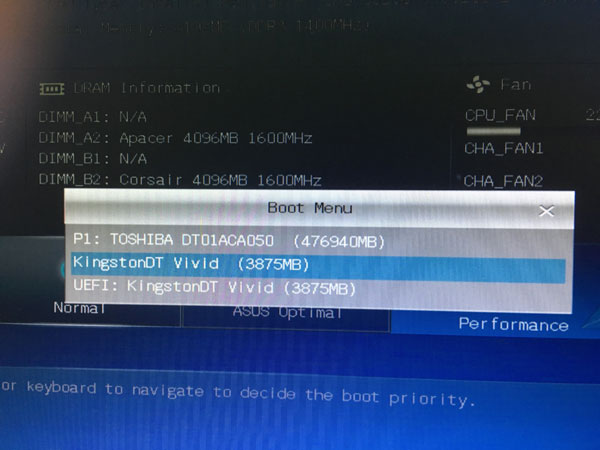
boot menu

Step 4: Reset Windows password.

When boot successfully to Windows Password Tuner program interface, select Windows 10 system, click on your user account, and click on "Reset password" button.

A message box will pop up and ask you "Do you want to set this user(username) password to blank?". Just click on Yes to set your password to blank.
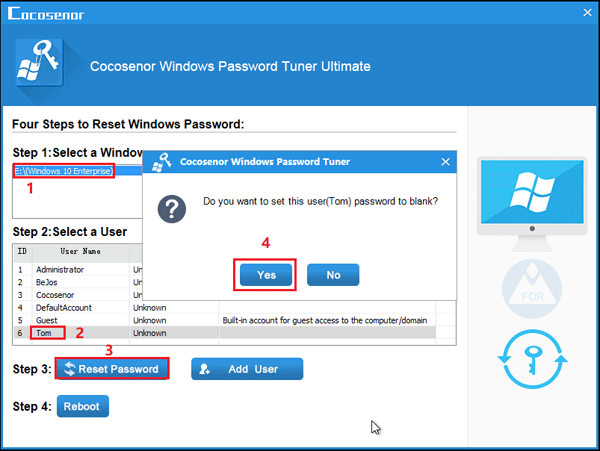
reset local account password

Eject your USB drive, click on "Reboot", and then click on Yes to restart your computer.
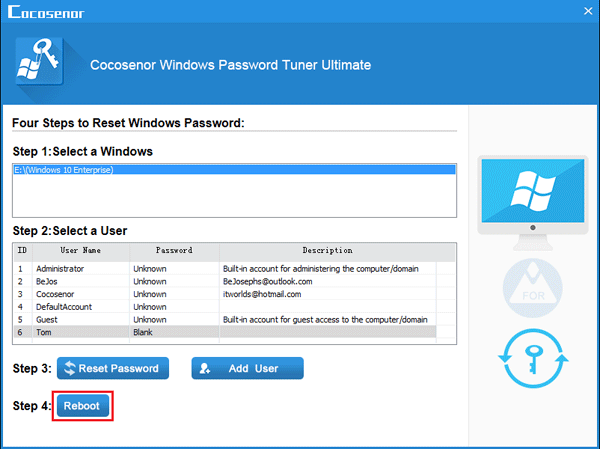
reboot

When boot to the logon screen, click on your user account, you will log into system without password.
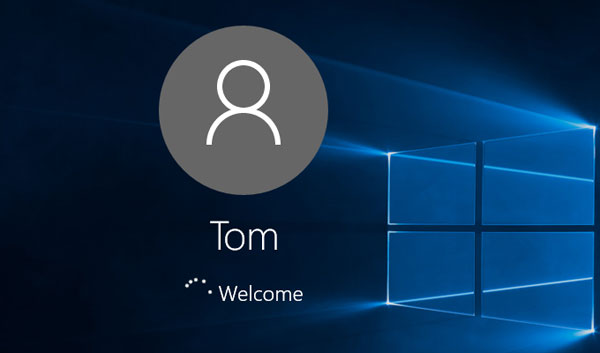
welcome get into

If the password is still incorrect for local account or Microsoft account (especially for Microsoft account), you can first disable and get out of safe mode, and then reset password with the password reset disk created from Windows password Tuner.

Option 2: How to disable and get out of safe mode in Windows 10?

If safe mode is not enabled from System Configuration, then you can get out of safe mode by restarting computer. On the logon screen, click on the power button, and then click on Restart. Or shut down your computer and then press the Power key to start it again.

If you can't get out of safe mode by restarting computer or safe mode is enabled from System Configuration by checking Safe boot option, follow the steps below to have a try to disable safe mode in Windows 10.

Step 1: Create a Windows 10 bootable USB drive.

You can download tool from Microsoft site, and then create a Windows 10 installation media. (This process will take a while)

Step 2: Set your computer boot from the bootable USB drive.

Connect the bootable USB drive to your computer, and then start or restart it.

When power on and the manufacture's logo appears, press the boot menu key to bring out Boot Menu and then select your USB drive to boot. Or press BIOS entry key to get into BIOS, and then change the boot order to set your USB drive as the first boot.

Step 3: Open Command Prompt.

When boot to Windows Setup screen, click on "Next".
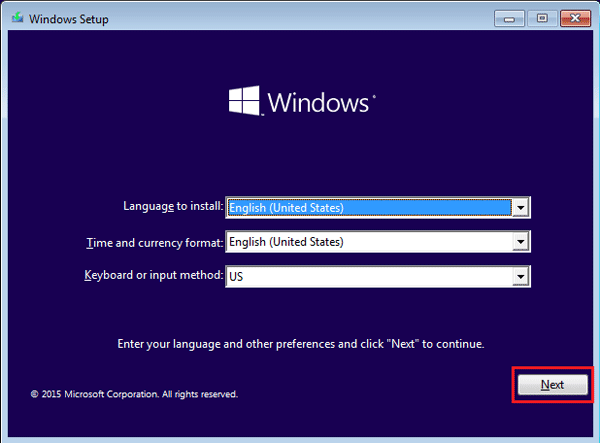
click on next

Click on "Repair your computer" on the lower left corner.
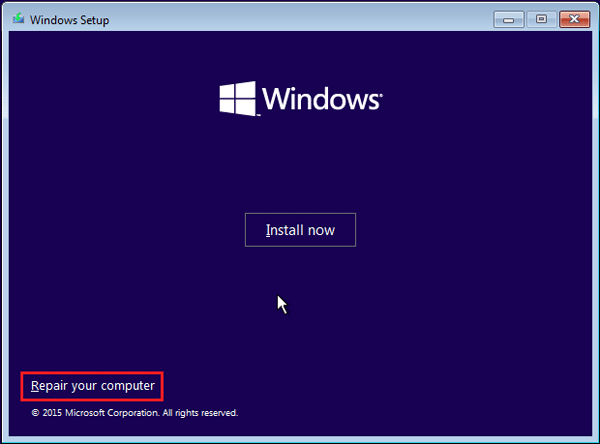
click repaire your computer

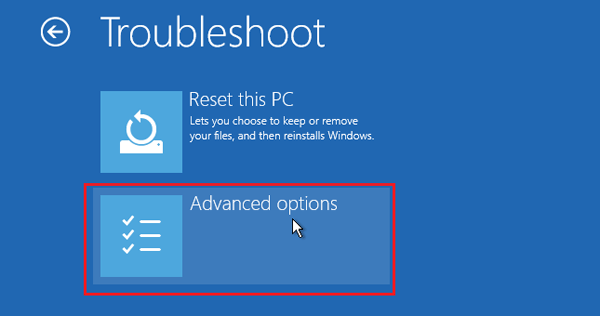
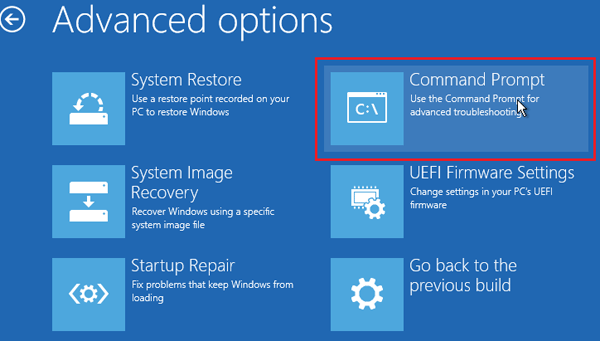
Click on "Troubleshoot >> Advanced options >> Command Prompt".
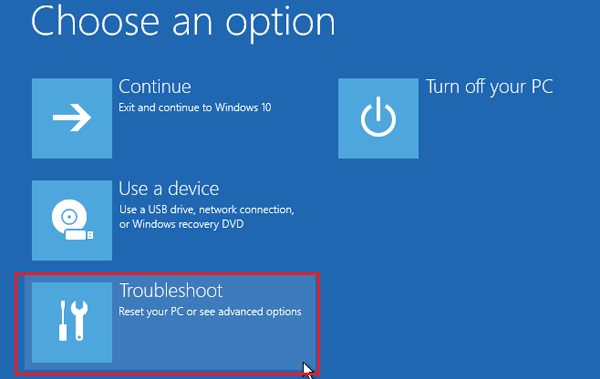
click troubleshoot

click advanced option

click command prompt

Step 4: Disable Safe Mode in Windows 10 with cmd.

On Command Prompt window, type in this command line: bcdedit /deletevalue {default} safeboot. Press Enter to execute the command. If you get a message saying "The operation completed successfully", that means safe mode is disabled in Windows 10.
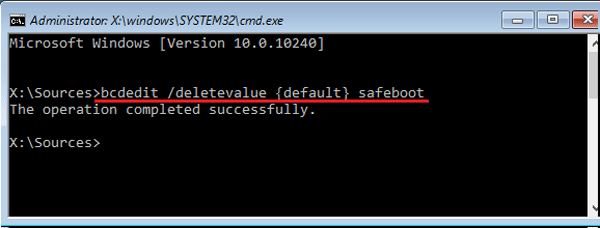
disable safe mode with cmd

Close Command Prompt, eject the USB installation disk and click on "Continue" to restart Windows. Wait for a while, you will find Windows 10 booting to the normal logon screen.
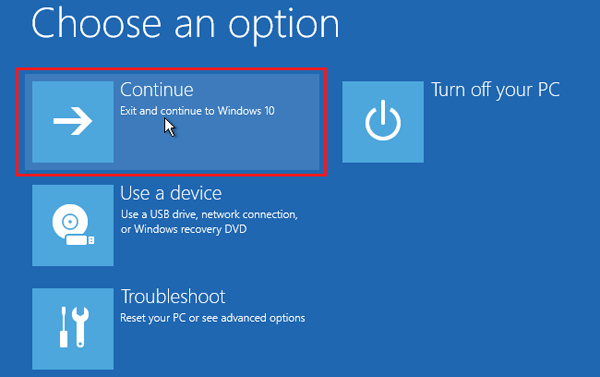
click continue

Since your Windows 10 get out of safe mode, you can login with PIN code or Picture password, and then reset Windows 10 password.

If you are locked out of Windows 10 and forgot password, follow option 1 to reset your forgotten password and unlock your computer.

Friday, December 4, 2020

Enable and Enter Safe Mode with Command Prompt Windows 10

If you can't get into Safe Mode by the normal way in Windows 10, you can try to enable and enter Safe Mode with Command Prompt following this video. But you have to boot into Windows 10 installation or repair screen with a Windows 10 installation or recovery disk.
1. First you need to get or create a Windows 10 installation disk or recovery disk.
2. Set your computer to boot from installation disk or recovery disk.
3. When go to Windows 10 installation or repair screen, click on Next >> Repair your computer >> Troubleshoot >> Advanced options >> Command Prompt.
4. When open Command Prompt, type in this command: bcdedit /deletevalue {default} safeboot, and then press Enter key to execute it.
5. After the operation completed successfully, close Command Prompt window, and then click on Continue to restart Windows and get out of Safe Mode.
For more ways to get into safe mode in Windows 10, please refer to this article: https://www.cocosenor.com/articles/windows-10/4-ways-to-get-into-safe-mode-for-windows-10-laptop.html

Thursday, October 29, 2020

Recover Forgotten Outlook Email Password from Outlook App

Forgot Outlook e-mail password? Don't be upset. If you have saved your Email password in your Outlook App, you can recover it easily by this way. For more details or methods, you can refer to this article: https://www.cocosenor.com/articles/office/forgot-outlook-email-password-how-to-recover.html

Thursday, October 22, 2020

Transfer Windows 10 from HDD to SSD without reinstalling OS

If want to speed up your Windows 10 laptop or desktop computer, transfer your Windows 10 from HDD to SSD is the best method, and here will show you an efficient way to transfer Windows 10 from HDD to SSD without reinstalling OS.

Saturday, October 17, 2020

How to Check Windows 10 Product Key on Your computer

How to Check Windows 10 Product Key on Your computer

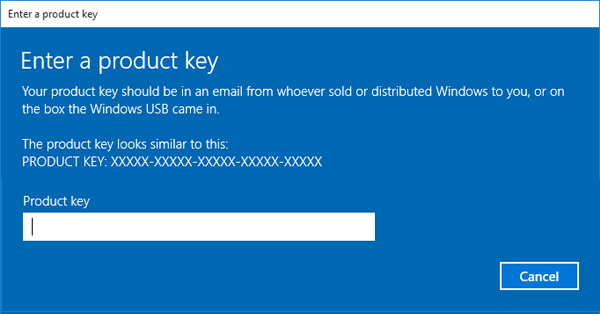
Wanting to do a clean install of Windows 10 on your PC device? If your device is installed with Windows 10 or upgraded from Windows 7 or Windows 8/8.1, you may need to find out your Windows 10 activation key from your computer before reinstalling system. In case you are required to enter the product key to activate your Windows 10 system again after the installation.


Where can you find Windows 10 product key from your Computer?


Printed on a sticker:
Retail Microsoft product keys are usually on a brand sticker located inside the case with the CD/DVD, or on the back. If you bought a computer installed with Windows 10, you may find the serial key on the Microsoft-branded sticker on your PC case.

Sent with Email:
If you purchased Windows 10 online, you may find the license key is included in an email that Microsoft sent you at the time of purchase.

Stored on Windows Registry:
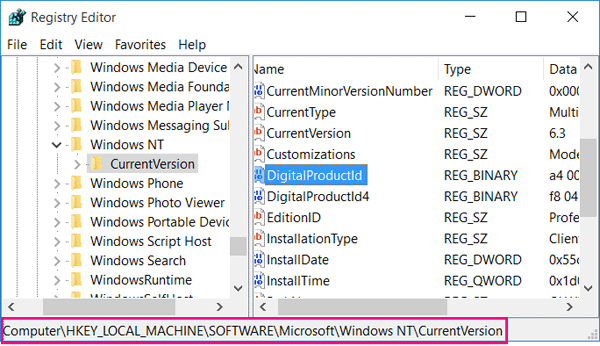
To view your Windows 10 product key in the Windows Registry: Press "Windows + R" to open Run, enter "regedit" to open Registry Editor.

Find the DigitalProductID by this way: HKEY_LOCAL_ MACHINE\SOFTWARE\Microsoft\windows NT\Currentversion.


You will find the DigitalProductID in registry, but you can't read it normally without a third party help.

Stored in PC's UEFI firmware:
The activation key for the version of Windows 10 is stored in the computer's UEFI firmware or BIOS. When you install or reinstall the same edition of Windows 10 (Windows 10 Pro, Windows 10 Enterprise, or Windows 10 Home) on a same computer, you do not need to enter the product key to activate it in a normal way. It will be activated automatically without entering product key after the installation.

Recover your Windows 10 Product key instantly with a Product Key Tuner

If you want to install Windows 10 on another PC device with the license key from your old Computer, but you have forgotten or lost it, you can use a Product Key Tuner to recover it instantly.

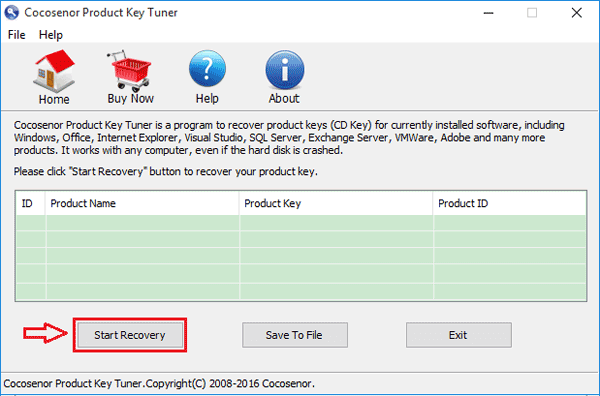
1. Start the Product Key Tuner program by this way:

1.1 Download a Cocosenor Product Key Tuner application from the official site.

1.2 Double-click on the cocosenor-product-key-tuner.exe file, click on Next to install it, and select to Start it now.

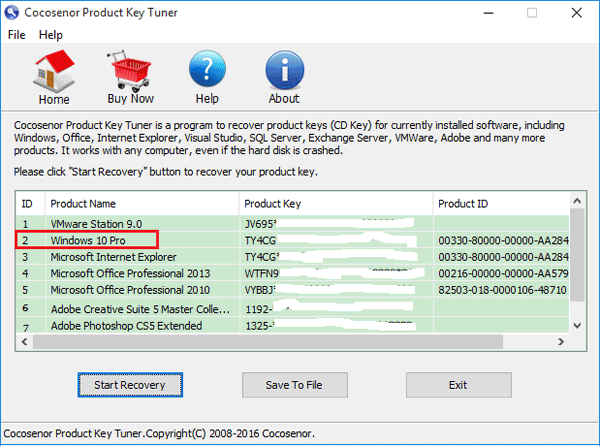
2. Click on Start Recovery button to check your Windows 10 product key on the old computer.


3. In a minute, the product name, product key, product ID on your computer will be showed for you. You can get your Windows 10 product key and product ID easily on the list.


Check Windows 10 product key with VBscript

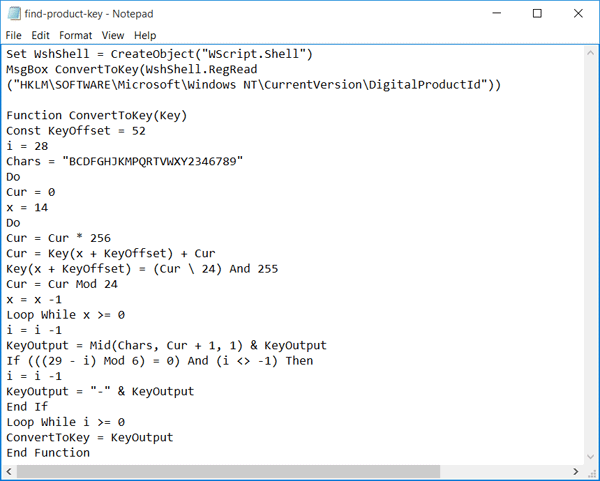
If you are an advanced user, you also can use the VBscript to read the value from the registry and translate it to 25 alphanumeric characters (serial key).

1. Open a Notepad.

2. Type the following VBscript to the Notepad.


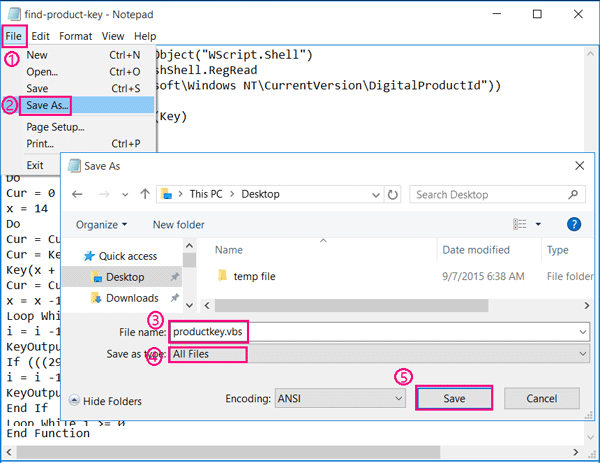
3. Save the file as .vbs file.

Click on File, click on Save As, and select the location where is easy for you to find.

Enter a file name "productkey.vbs", select All Files, and then click on Save button to save the file.


4. Double-click on the "productkey.vbs" file, instantly you can see your Windows 10 product key on the dialog box clearly.

Thursday, October 15, 2020

4 Tips to Make Your Computer Faster Windows 10

Your Windows 10 computer is running slower? Here are 4 tips to make your computer faster with Windows 10:

Way 1: uninstall unused software and applications to make computer faster.

Way 2: Clean up junk files to speed up Windows 10.

Way 3: Disable auto-start to speed up Windows startup.

Way 4: End unnecessary tasks running in the background to boost computer performance.

If want to get more methods and details, you can refer to this article: https://www.cocosenor.com/articles/windows-10/how-to-make-your-windows-10-computer-run-faster.html


Wednesday, September 30, 2020

Unlock iPhone Passcode with iTunes if forgot password

Forgot iPhone passcode? This video will shows you how to unlock your iPhone with iTunes without passcode.


Thursday, September 10, 2020

How to Check Connected Wi Fi Password in Laptop by Command Prompt

Forgot your Wi-Fi password and want to check for it on your laptop? You can check your connected Wi-Fi password from your laptop by Command Prompt.
Type in this command: netsh wlan show profile, press Enter.
Type in another command: netsh wlan show profile "wifi" key=clear, and press Enter.
And then you can see your Wi-Fi password in your laptop.
If the command line does not work for you, see these 3 ways tocheck for Wi-Fi password on Windows 10 laptop.


Wednesday, September 2, 2020

Back up External Hard Drive to another External Hard Drive Windows 10


How to backup one external hard drive to another external hard drive
in an easy and quick way? Somebody may come up with the idea of copy and paste.
However, the truth is that if you have a large size of data to be backed up or
cloned from one external hard drive to another external hard drive, the method
of copy and paste will take a long time to do that. Here will show you
an efficient way to back up your external hard drive to another external hard
drive easily and quickly.

Thursday, August 27, 2020

I forgot my Screen Time Passcode in iPhone how to reset it


we can set a Screen Time
passcode to manage our time on apps or configure child's device through our own
iPhone devices (by using
Family Sharing).
What to do if forgot the screen time passcode on iPhone? Follow this ways to
reset the screen time forgotten password without data loss.

Wednesday, August 19, 2020

How to Unlock an iPhone without the Passcode


What to do when you forgot screen passcode of the iPhone SE/11/11 Pro/XS/XS Max/XR/8/8 Pro/7/7 Plus/6/6 Plush/5s/5c and other older iPhones? If you enter the wrong passcode for multiple attempts, your iPhone will be disabled. If the attempts are up to 10, you will only get the message –iPhone is disabled. How to unlock a disabled iPhone without passcode? Follow this video will show you the way to unlock your iPhone without iTunes or iCloud.

Monday, September 30, 2019

unlock bitlocker drive from command prompt without recovery key

There are many ways to unlock a Bitlocker encrypted drive, unlock it directly with password, recovery key, or on the command. Here this post will show you how to unlock the Bitlocker encrypted drive from Command Prompt with password not recovery key.
1. Open Command Prompt as Administrator.
2. Type in the command: manage-bde -unlock X: -password, and then press Enter to run it.
(X is the letter of Bitlocker encrypted drive, please remember to change it to yours.)
3. Type in the password and then press Enter. The password won’t be showed on the Command Prompt screen, just type in the correct password and press Enter. If the password is correct, you will get the message that is prompting you the Bitlocker encrypted drive is unlocked successfully.
Here is the video guide:

Tuesday, November 21, 2017

Getting Windows ready. Don’t turn off your computer – Windows 10


When I shut down my laptop with Windows 10 upgraded from Windows 7, on the Windows shutting down screen, it shows “Getting Windows ready. Don’t turn off your computer”, but I was waiting for several hours, my laptop still stuck on this blue screen and didn’t turn off. Have you got with this same issue? How do you deal with it?
I turned off the power button, the screen got black, but when I turned on the power button, it got to that blue screen again. I think I would need to reset my laptop again.
But fortunately, it didn’t need to reset my laptop. At last, I tried to press and hold on the Power button for several seconds to completely power off my laptop.
After a while, I turned on my laptop again.  To my excitement, this time it booted to the logon screen normally, not at that blue screen!

Friday, April 7, 2017

Why Select Cocosenor ZIP Password Tuner to Recover ZIP password

Encrypting ZIP archives can boost the security of the archives, but in our daily work, we have to memorize many password, maybe some day, we forgot the password. Then how should you do? Many of us may resort to search ZIP password cracker or ZIP password recovery tool in google.com, there you can get thousands of result. There is a software which selected by millions of people --- Cocosenor ZIP Password tuner. Why people select Cocosenor ZIP Password Tuner to recover ZIP password? After comparing to other softwares, you may found that the reasons are as follow:


1. User friendly, easy to use. 


 You can search "Cocosenor ZIP Password Tuner" in google.com, then you will be able to find the products. Or you can directly download the software from the product page.

 1.1 Here is the video manual on how to use Cocosenor ZIP password tuner to recover ZIP password.


2. 100% safe, virus free, malware free, adware free.

3. Try the ZIP Password Tuner for free

You can try the software for free. If the password to your ZIP archives is not longer than 3 characters, you can use the trail version to recover the ZIP password in a short while.

4. Only USD19.95 for non-trail version, Competitive!

If the password is longer than 3 characters, you can buy a registration code. Compared to other software, the price of Cocosenor ZIP password tuner is quite competitive, only USD19.95. The non-trial version can help you to recover the password in a second as well.

5. Your payment is safely guard, the transaction is under protection.

6. 90 days money back

If the password is not recovered for some reason, you can get your money back in 90 days.

Monday, March 20, 2017

How to Open A Password Protected RAR File

"I had a rar archive, I encrypted it when making the archive, but unfortunately as I didn't open it for a long time, I forgot the rar password, I have tried many time, but I still cannot get the password. Anyone can help me to open it? Appreciate for your help!"

This is a normal question regarding rar password that many people might meet, you don't have to be fret, as you can have an amazing tool -- Cocosenor RAR Password tuner. Here you will also learn how to use it to unlock your RAR archives.
Step 1. Download and install Cocosenor RAR Password tuner.
Step 2. Double click to run the software, click Open to load the archive in .rar format

Step 3. There are four types of attack -- Brute-force, Mask, Dictionary, and Smart

The four attack types are common on password recovery, for example, if I remember the password length is 8, it ends with 8421, it might contain caps latin, small latin, and digits, then I can select Mask attack as the attack type, you replace the forgotten parts with question mark "?" Then I make some setting as below:
Tip: There is a free trial version and standard version of Cocosenor RAR Password Tuner, the trial version just works for the password not longer than 3 characters. However if the password is longer than 3 characters, you have to buy a registration code. 

Step 4. Click Start. The program will begin to automatically search the password for you. The password recovery time depends on whether the password is complicated or simple. If it's too complicated, you might have to wait a bit longer time. The program has a function that enable you to pause the recovery progress, then you can resume it when you open the program next time. 

Wednesday, March 15, 2017

How to Make PDF Password Recovery if I forgot the password

When you forgot the password for an important PDF file that you encrypted it several months ago, or when you got a paper, or report after a long time hard work, but it's password protected, you may feel rather frustrated. You could try all possible password you can remember, if you still open the PDF file, I'd like to recommend a free PDF password recovery tool for you--Cocosenor PDF Password Tuner. You can try it for free. Follow below steps, you will learn about how to use it to make PDF password recovery. 

Step 1. Download and install  Cocosenor PDF password tuner in your computer

Step 2. Launch the software, click Open to add the PDF file that you want to decrypt.

Step 3. If you move your cursor to Type of attack, you will find there are four types of attack--Brute-force, Mask, Dictionary, and Smart Attack. The default type is Brute-force, now we leave it as default. We can use brute-force attack to recover the passwrod. 

    At Tap Range, you can find there are some checkbox, you can select the items according to your memory on the password. 
    For example, if you remember your password consist of small latin, digits, special symbols, you can select the check box before "All small latin(a-z)", "All digits(0-9)", "All special symbols(!@#...)". Like below:
    If you also remember the length of password, for example, you know the password is at least three characters, you can set as below as well.
    Tip: The free trial version just works for password that not longer than 3 characters, if it's over 3 characters, you need to buy a registration code.
    Step 4. Click Start, then the software works, the password recovery time depends on the complexity of password. If your computer has a higher CPU and GPU, the recovery speed could be faster.